Status Bar Usage
Located at the very bottom of the Excel application window, the Status Bar provides real-time information about your current worksheet state, instant statistical summaries of selected data, display view toggles, and zoom controls.
Video Explanation

Anatomy of the Status Bar
The Status Bar operates quietly in the background, updating dynamically as you navigate cells and highlight data blocks:
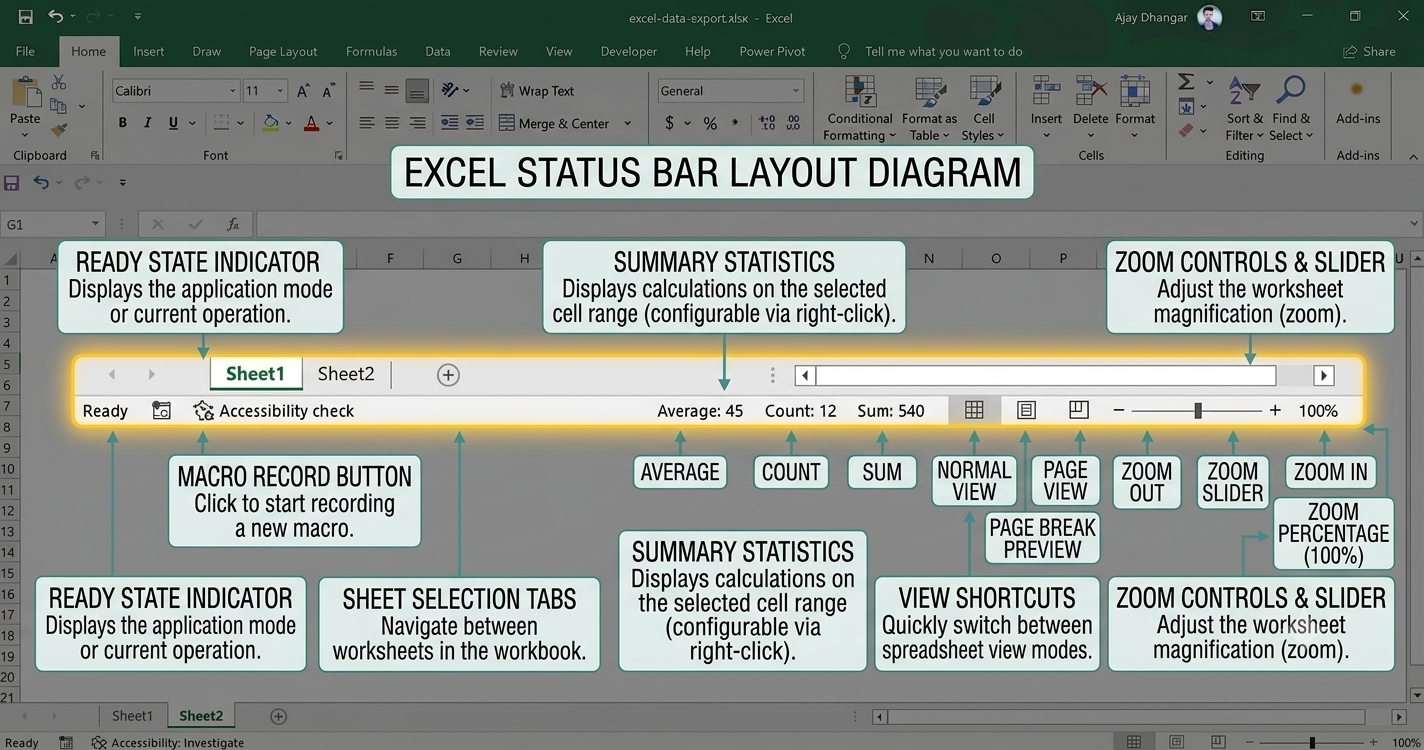
- Cell Mode Indicator (Far Left): Displays the current operational state of the active cell (
Ready,Enter,Edit, orPoint). - Summary Statistics (Center): Shows dynamic calculations for selected numerical or text ranges without writing formulas.
- View & Zoom Controls (Far Right): Enables fast switching between workbook views and sheet magnification levels.
Automatic Summary Statistics (Quick Stats)
When you highlight two or more cells, the Status Bar automatically aggregates and displays key mathematical metrics instantly.
Default Visible Metrics
- Average: The calculated arithmetic mean of all selected numeric cells.
- Count: The total number of non-empty cells in the selection.
- Sum: The combined total value of all numeric cells in the selection.
Unlocking Additional Metrics
Right-click anywhere on the Status Bar to enable or disable any of the six built-in quick statistics:
| Statistic | Description |
|---|---|
| Average | Calculates the mean of numeric entries. |
| Count | Counts all populated cells (text, numbers, and symbols). |
| Numerical Count | Counts only cells containing numeric values. |
| Minimum | Displays the lowest numeric value in the selection. |
| Maximum | Displays the highest numeric value in the selection. |
| Sum | Adds all numeric values together. |
Left-clicking any summary statistic on the Status Bar automatically copies that exact calculated value directly to your clipboard for quick pasting!
Understanding Cell Modes
The left side of the Status Bar indicates how Excel is currently processing your keyboard and mouse inputs:
- Ready: Default state. The worksheet is idle and waiting for user input or command execution.
- Enter: Active when you start typing in an empty cell.
- Edit: Activated when you press
F2or double-click a cell to modify existing contents. Arrow keys move the text cursor within the cell. - Point: Activated when building a formula and clicking target cells to add references. Arrow keys navigate across worksheet cells to build formula ranges.
Customizing the Status Bar Context Menu
Right-clicking the Status Bar opens a comprehensive configuration menu allowing you to toggle workspace status indicators on or off:
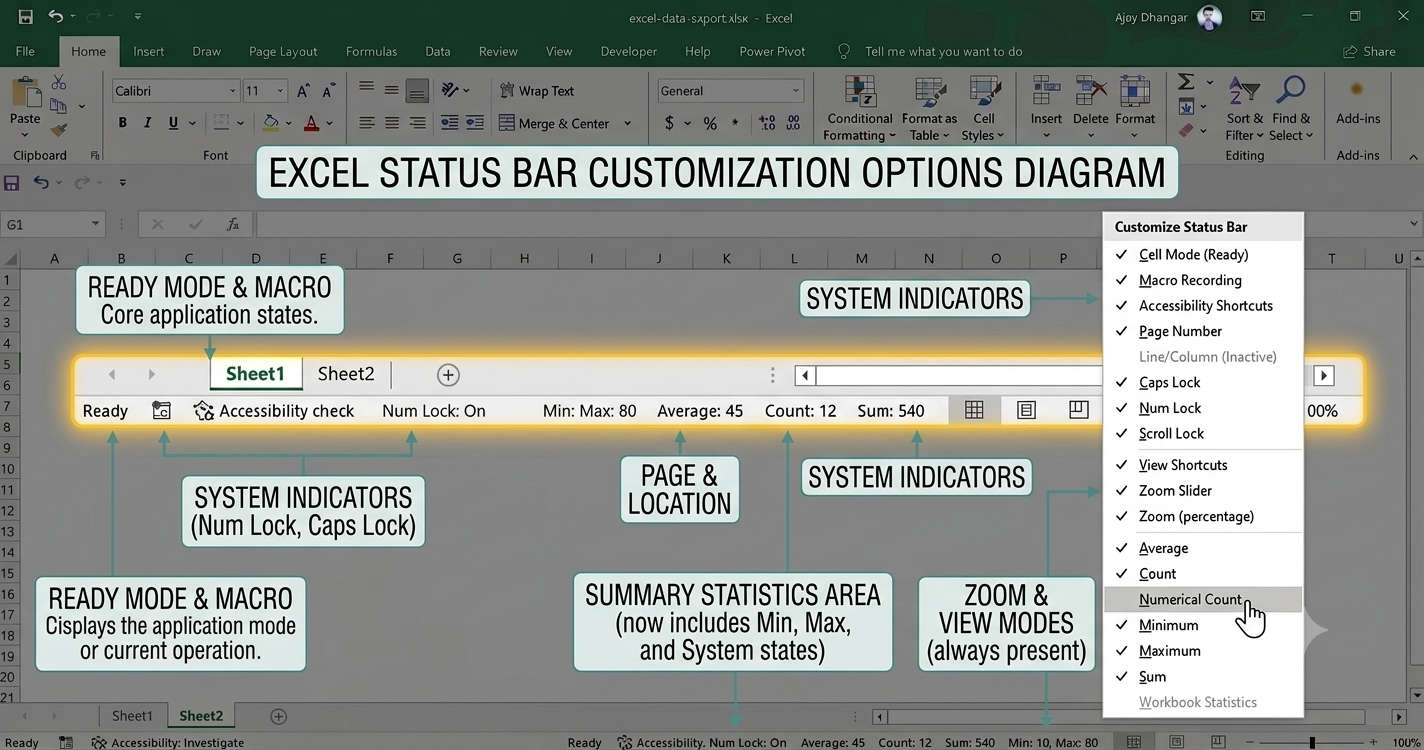
Essential Indicators to Enable
- Caps Lock / Num Lock / Scroll Lock: Displays visual alerts when these keyboard locks are engaged.
- Macro Recording: Adds a single-click icon to start or stop recording VBA macros.
- Calculation Mode: Indicates whether workbook formulas are set to Automatic or Manual.
- Track Changes / Signatures: Displays active security and collaboration permissions.
View Shortcuts and Zoom Controls
The far-right section of the Status Bar houses rapid layout and magnification adjustments.
- Workbook View Buttons: Switch instantly between Normal, Page Layout, and Page Break Preview views.
- Zoom Percentage Button: Click the percentage text (e.g.,
100%) to open the Zoom dialog and select precise magnification scales. - Zoom Slider: Drag the slider left (
-) or right (+) to scale worksheet visibility smoothly between 10% and 400%.