Quick Access Toolbar (QAT)
The Quick Access Toolbar (QAT) is a customizable toolbar positioned independently of the active Ribbon tab. It provides single-click access to your most frequently used Excel commands, tools, and custom macros from anywhere in the application.
Video Explanation
Overview and Default Configuration
By default, the Quick Access Toolbar is located in the top-left corner of the title bar (above the Ribbon tabs).
Default Commands
When you first open Excel, the QAT typically contains a minimal set of primary operational tools:
- AutoSave (for OneDrive/SharePoint hosted files)
- Save (
Ctrl + S) - Undo (
Ctrl + Z) - Redo / Repeat (
Ctrl + Y)
Adding and Removing Commands
You can add almost any Excel command—or even custom macros—to the Quick Access Toolbar for quick access.
Method 1: Direct Right-Click (Fastest)
- Locate any command or button on the Ribbon tabs.
- Right-click the command icon or dropdown menu.
- Select Add to Quick Access Toolbar.
Method 2: QAT Dropdown Menu
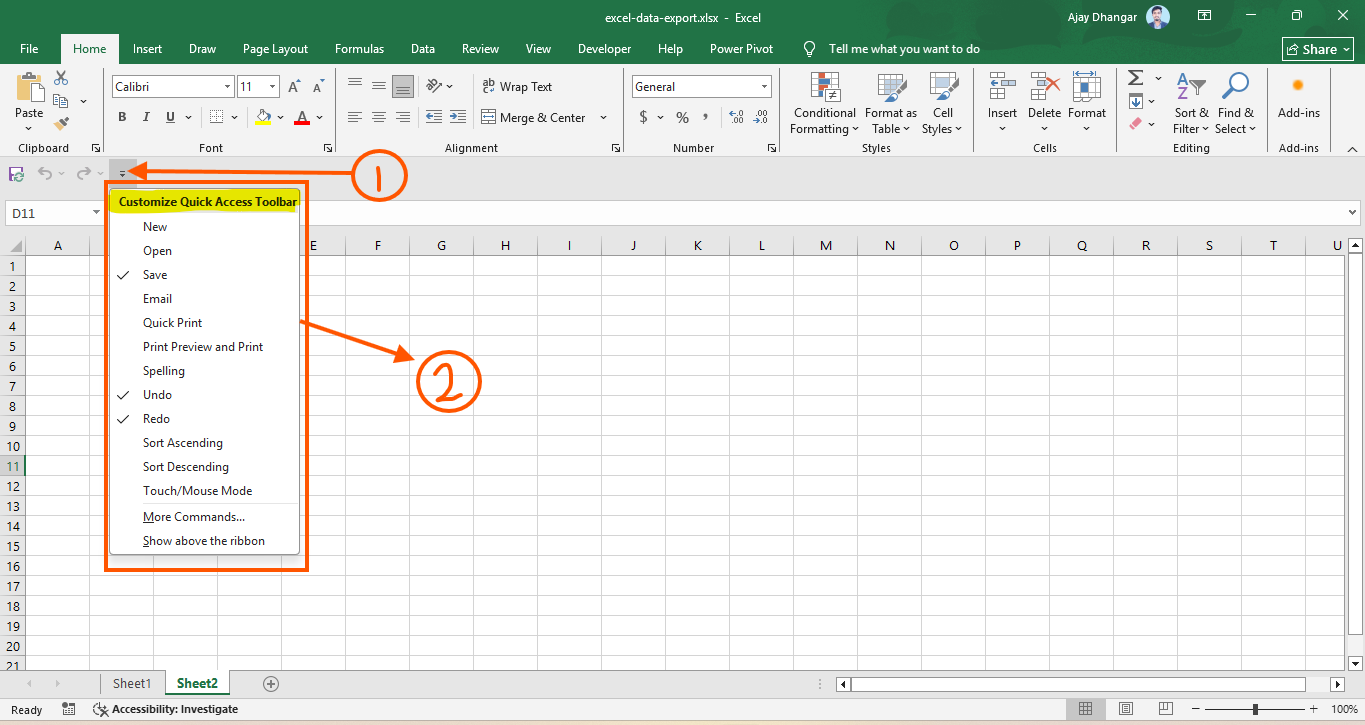
- Click the small Customize Quick Access Toolbar arrow (▼) at the right end of the QAT.
- Check or uncheck popular built-in commands (such as New, Open, Quick Print, Sort Ascending, or Touch/Mouse Mode).
Method 3: Excel Options Dialog (Advanced)
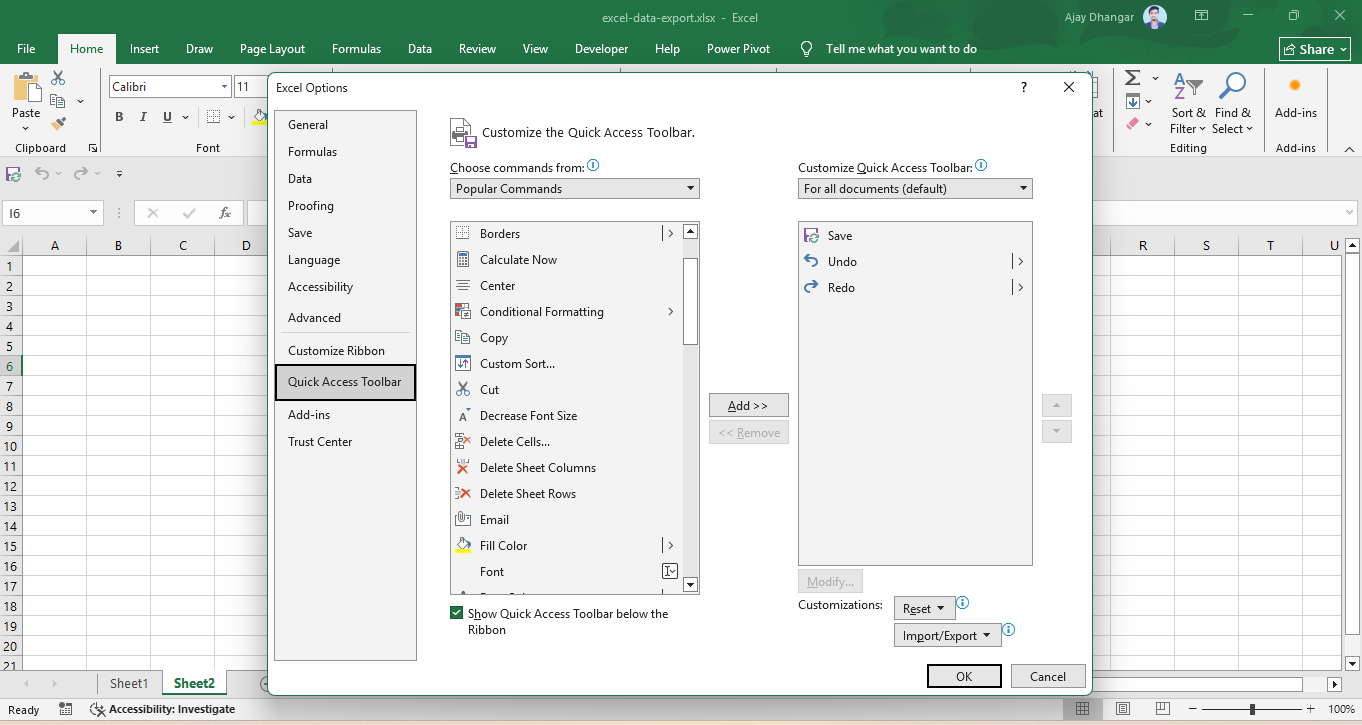
- Navigate to File > Options > Quick Access Toolbar (or right-click the QAT and choose Customize Quick Access Toolbar...).
- Set Choose commands from to Popular Commands, Commands Not in the Ribbon, or All Commands.
- Highlight your desired command in the left box and click Add >>.
- To remove a tool, highlight it in the right-hand panel and click << Remove.
Repositioning the Toolbar
Depending on your screen resolution and workspace preference, you can display the Quick Access Toolbar above or below the Ribbon.
| Position | Advantages | How to Set |
|---|---|---|
| Above the Ribbon (Default) | Saves vertical grid space; keeps the worksheet tall. | QAT Dropdown → Show Above the Ribbon |
| Below the Ribbon | Easier cursor reach; allows more horizontal space for icons. | QAT Dropdown → Show Below the Ribbon |
Keyboard Shortcuts for QAT Tools
The Quick Access Toolbar enables automatic numerical keyboard shortcuts:
- Press the
Altkey on your keyboard to reveal key tips over the Excel UI. - Notice the numbers displayed over each item in your Quick Access Toolbar (
1,2,3, ...9). - Press
Alt + [Number]to trigger that exact command immediately without touching the mouse.
If your 4th item on the QAT is Paste Special Values, pressing Alt + 4 executes that command instantly.
Reordering Commands
- Open File > Options > Quick Access Toolbar.
- Select the command you want to resequence from the right-hand list.
- Use the Move Up (▲) and Move Down (▼) buttons on the far right to reorder the tools.
- Click OK to apply your changes.
Importing, Exporting, and Resetting
You can back up your toolbar setup to transfer it to another computer or restore default settings.
Exporting Settings
- Go to File > Options > Quick Access Toolbar.
- Click Import/Export at the bottom right.
- Select Export all customizations and save the file (
Excel Customizations.exportedUI).
Importing Settings
- Go to File > Options > Quick Access Toolbar.
- Click Import/Export → Import customization file.
- Select your
.exportedUIfile to apply your saved layout.
Importing a customization file overwrites all existing Ribbon and Quick Access Toolbar configurations.
Resetting to Defaults
To revert the toolbar back to its original state:
- Click Reset at the bottom of the Quick Access Toolbar options window, then select Reset only Quick Access Toolbar.