How Browsers Work
You probably use a browser (Chrome, Firefox, Safari) for hours every day. But to a Full-Stack Engineer, a browser is not just a tool; it is a complex execution environment.
Its single, massive job is called Parsing and Rendering: taking raw text files from a server and turning them into the visual, clickable experience you see on your screen.
1. The Browser's High-Level Architecture
A modern browser is like a mini-operating system. It has many components working together:
2. The Critical Rendering Path (CRP)
This is the sequence of steps the browser takes to convert HTML, CSS, and JavaScript into pixels on the screen. Understanding this is key to website performance.
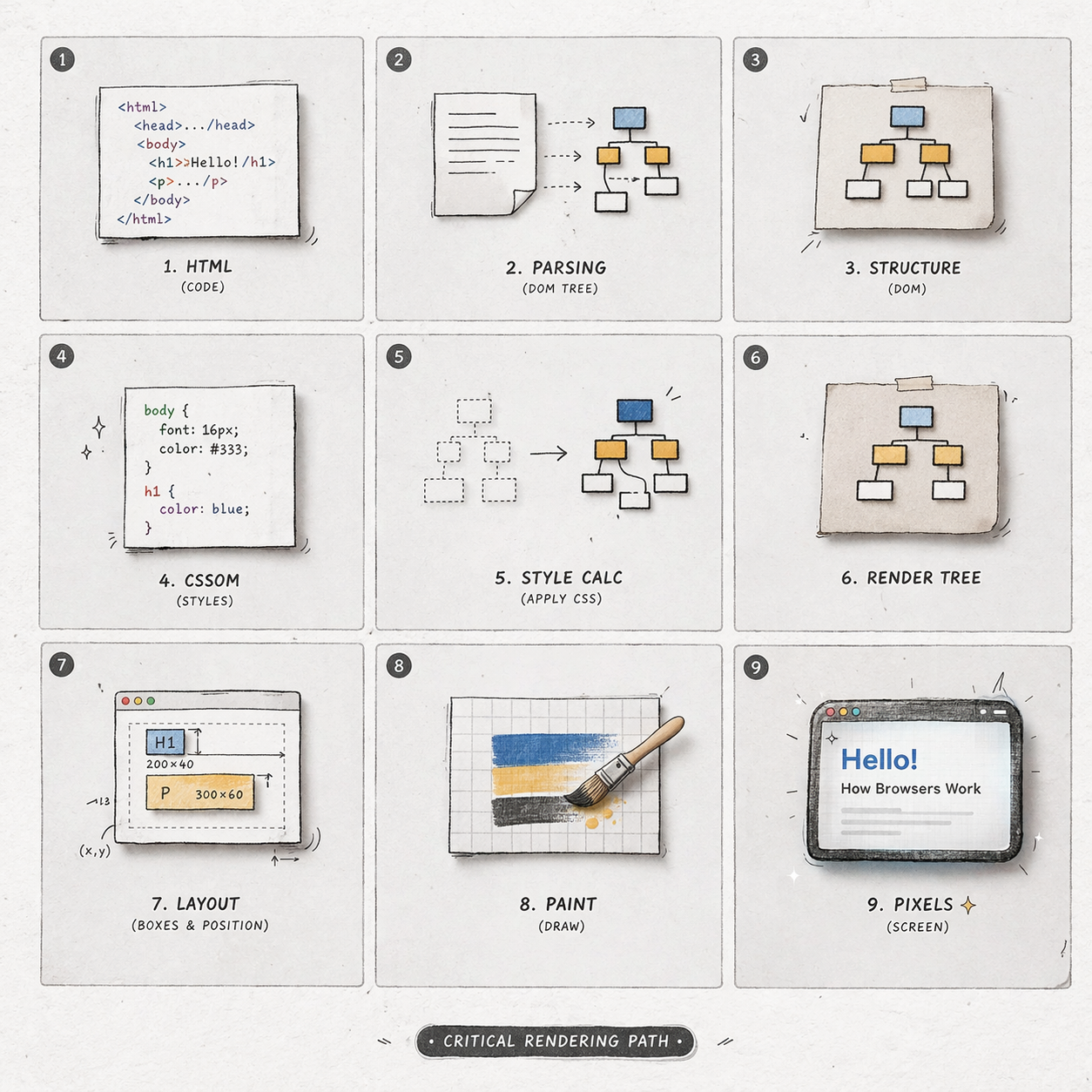
The 5 Stages of Rendering:
- 1. DOM Tree
- 2. CSSOM Tree
- 3. Render Tree
- 4. Layout (Reflow)
- 5. Painting
The browser parses the HTML and builds the Document Object Model (DOM). This is a tree-like map of all your HTML tags.
HTML:
<div>
  <h1>Hello</h1>
  <p>World</p>
</div>
Resulting DOM Tree:
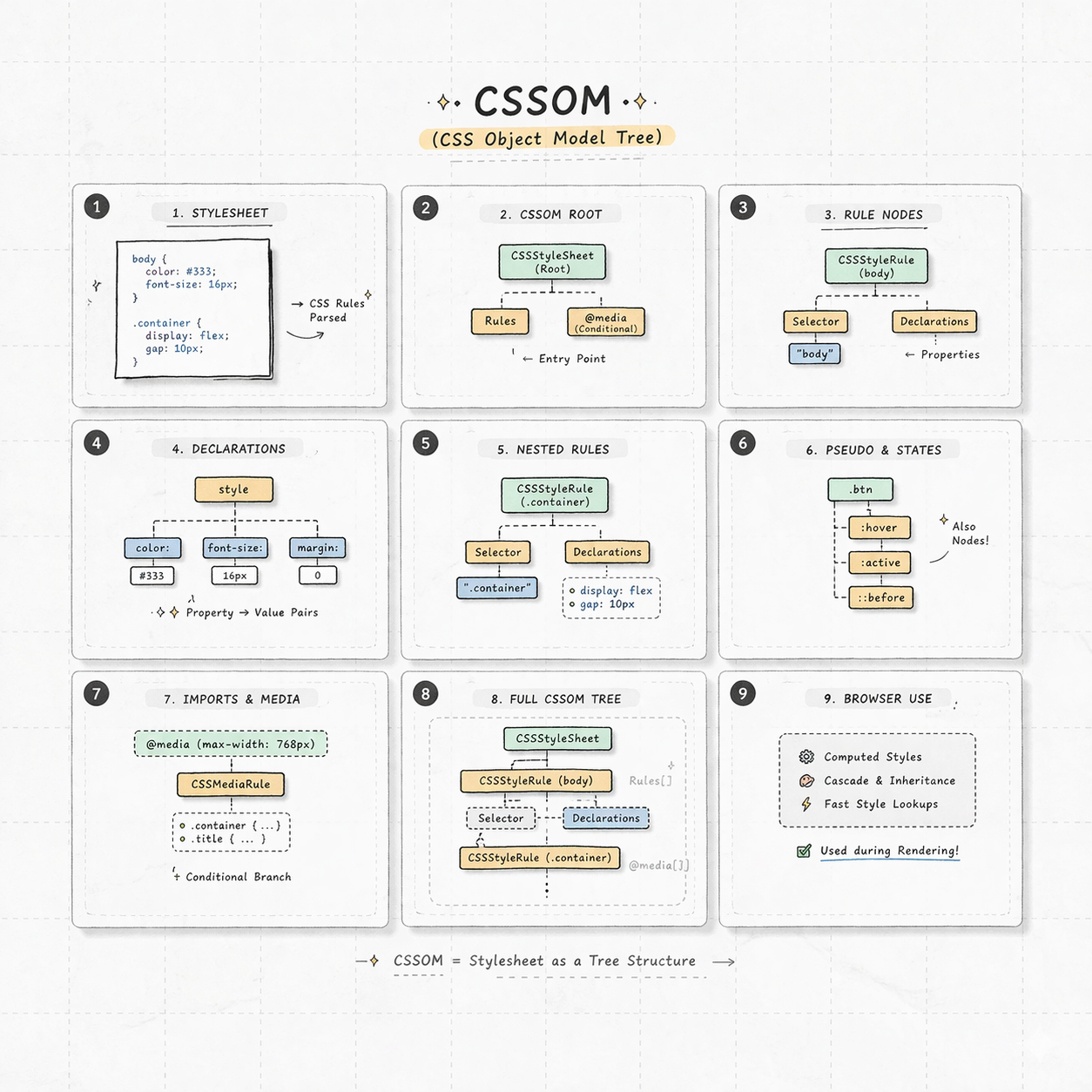
While building the DOM, the browser also parses all CSS (from <style> tags and external files) to build the CSS Object Model (CSSOM). This tree contains all the styling rules for your elements.
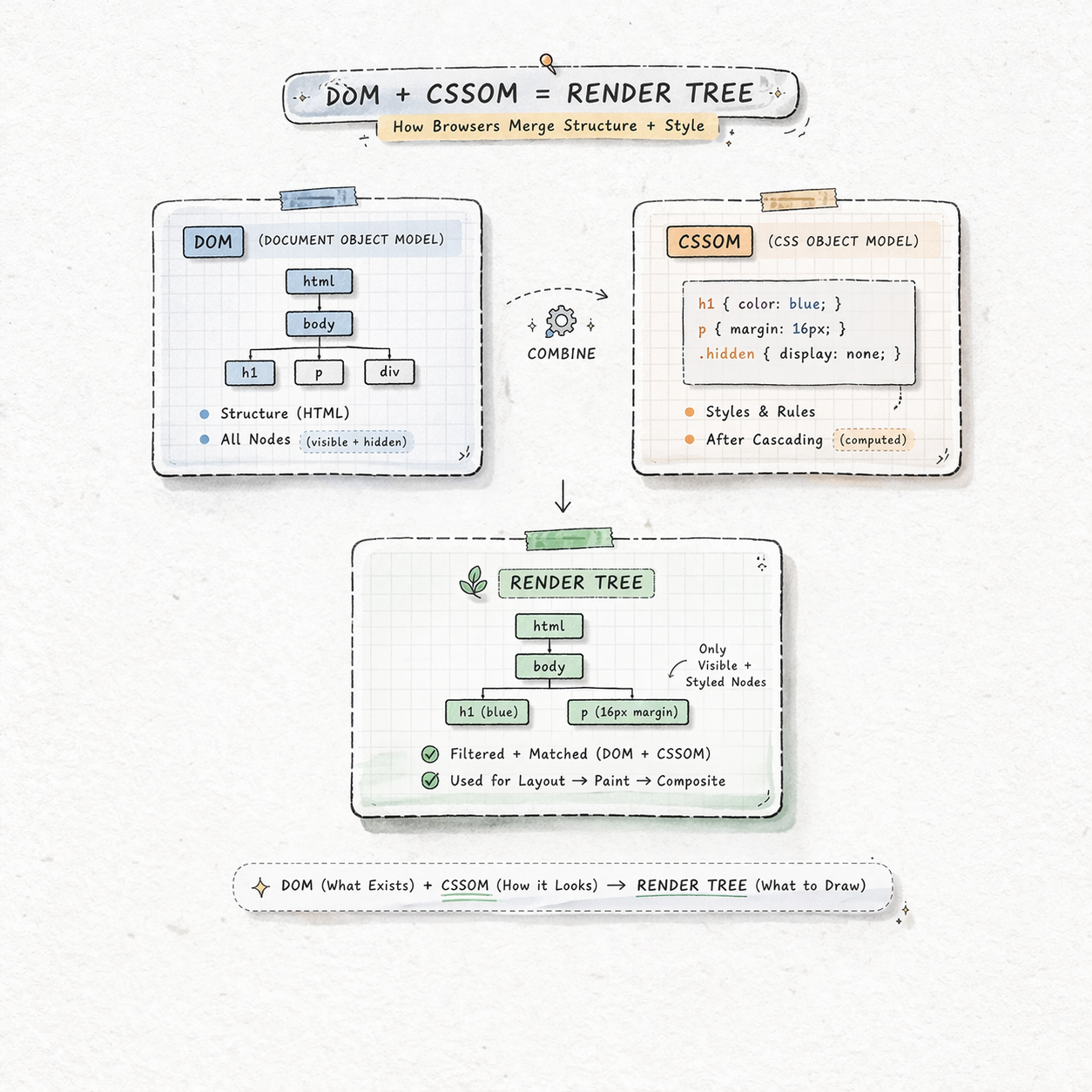
The browser combines the DOM and the CSSOM into a Render Tree.
- Crucial: The Render Tree only contains elements that will be visible. Anything with
display: noneis not in this tree.
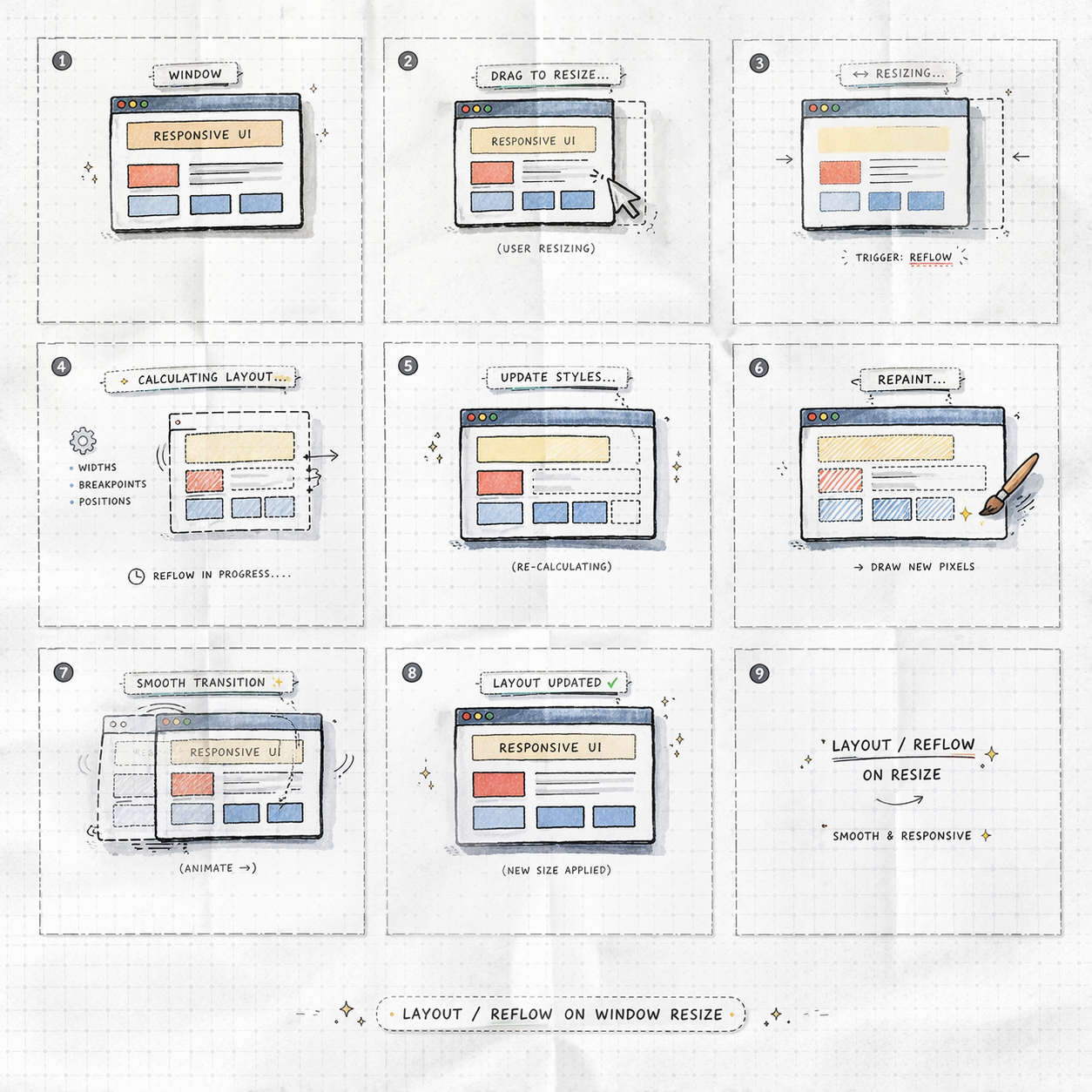
Now the browser knows what to show, it needs to know where to show it. The Layout stage calculates the exact coordinates and size (width, height) of every element on the screen.
This stage is re-run (called a Reflow) whenever you resize the window or change an element's size with JavaScript.
The final stage! The browser takes the calculated layout and paints the actual pixels onto the screen (colors, text, images, borders, shadows).
This stage is re-run (called a Repaint) when you change the color or visibility of an element without changing its layout.
3. The JavaScript Engine: Making it Interactive
JavaScript is the third piece of the puzzle. The browser passes all JS code to its specialized JavaScript Engine (like V8 in Chrome).
- The Problem: By default, JavaScript is Parser-Blocking. When the HTML parser sees a
<script>tag, it stops everything, downloads the JS file, runs it, and then continues parsing the HTML. - The Solution: We use attributes like
asyncordeferto tell the browser not to block the page rendering.
4. Let's Explore: The Chrome Developer Tools (DevTools)
Every browser has powerful tools built-in for developers. Press F12 or Right-Click > Inspect right now!
| Tab | What it's for | Analogy |
|---|---|---|
| Elements | Live view of the DOM Tree and CSSOM. You can edit code here and see changes instantly. | The interactive map of your page. |
| Console | Logs errors, warnings, and allows you to run JavaScript live. | Your direct line of communication to the browser. |
| Network | Shows every file (HTML, CSS, JS, Image) the browser requests from the server and how long it takes. | The logistics manager for your page assets. |
| Performance | Records the rendering process to find what is slowing down your page (e.g., long Layout times). | The stop-watch and diagnostic tool. |
Need to fix a typo or test a new color on a live site? Use the Elements tab to edit the HTML/CSS directly. The change only happens on your screen, not on the server, but it's perfect for rapid prototyping.
The browser turns raw code into a DOM (Structure) and CSSOM (Style), combines them into a Render Tree, calculates their positions (Layout), and draws them (Paint). JavaScript can modify this process but must be managed carefully for performance.